Guide

A tour of p4-web, from login to submit. If you haven't installed it yet, the quickstart gets a server running in under a minute.

All screenshots show a demo depot (//rocket) with fictional users and changelists — your instance will show your own server's data, filtered by your Perforce protections.

p4 login
step 1

Log in with your Perforce account

Credentials are exchanged for a p4 login ticket — the password itself is never stored. If your site uses long-lived tickets, you can paste a ticket value in place of the password, Swarm-style. The server address shown under the logo is the instance's P4PORT.
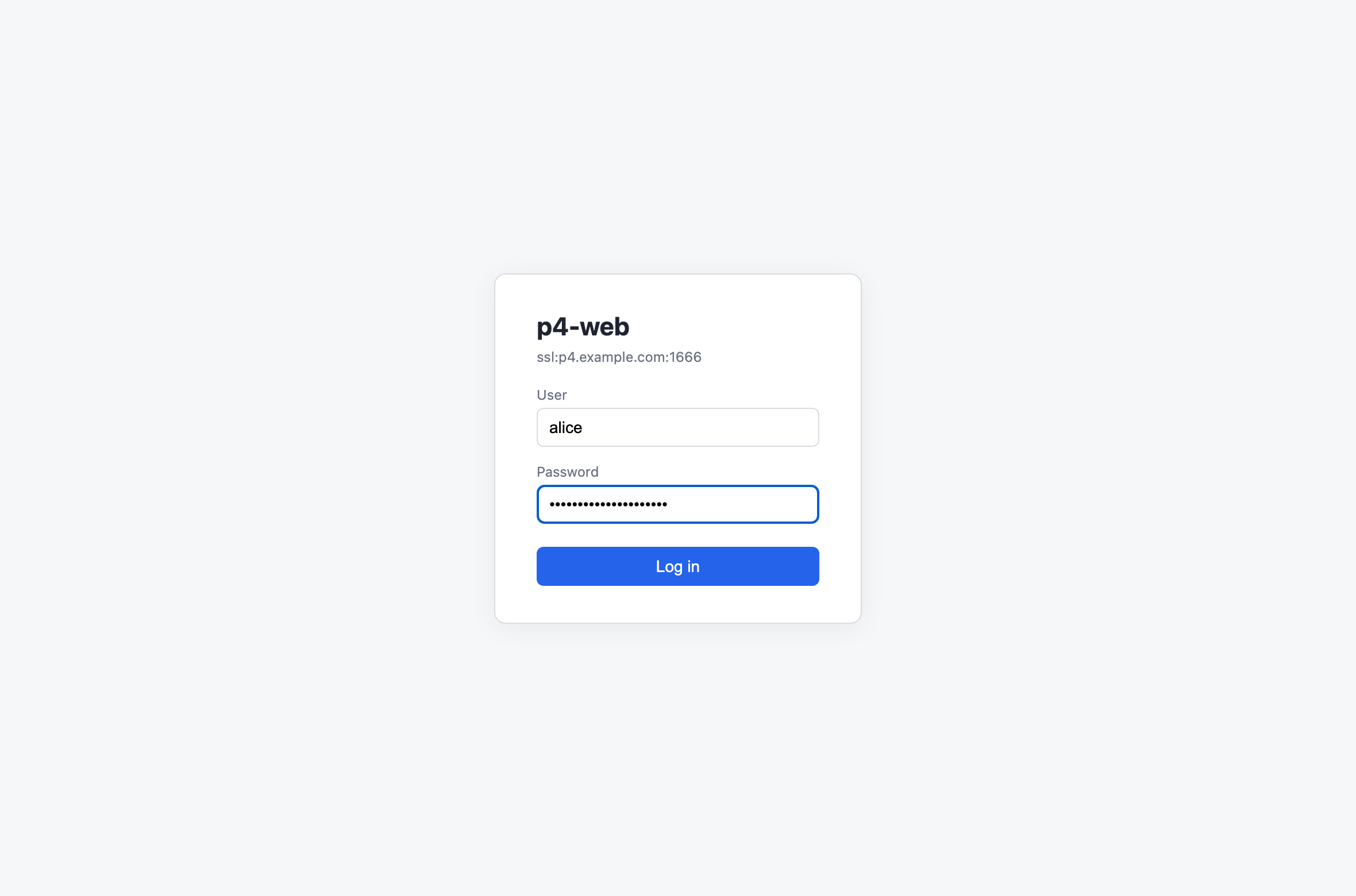
p4-web login screen with user and password fields
Login — user + password, or user + pasted ticket
p4 dirs
step 2

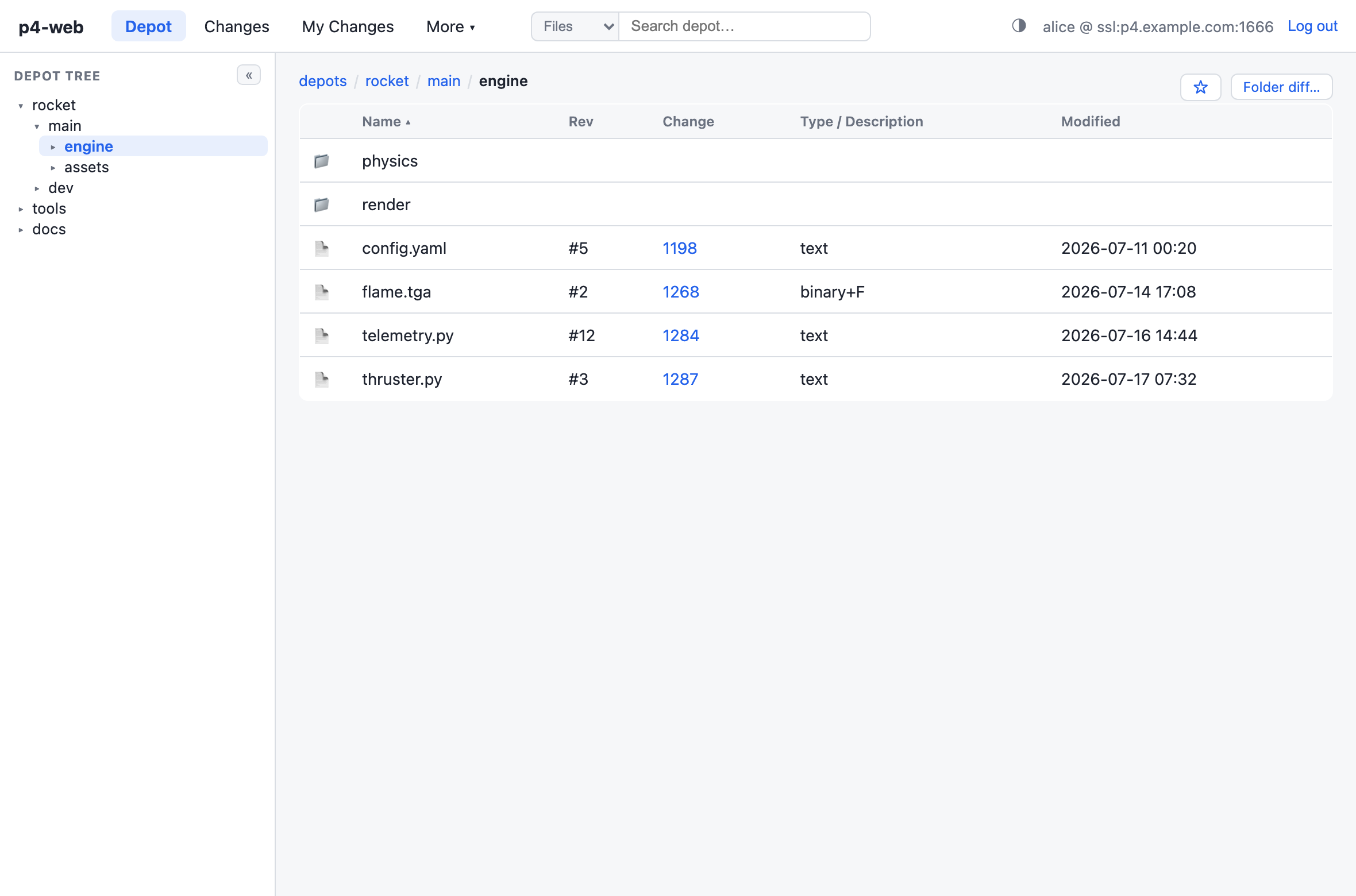
Browse the depot

The collapsible tree on the left stays in sync with deep links, P4V-style. Listings show revision, changelist, type and modified time — click a column header to sort. The ☆ button saves the current path as a favorite; favorites become a dashboard on the root page. Directories with a README render it below the listing.

Depot browser with tree sidebar, breadcrumbs, and a sortable file listing
Depot browser — tree, breadcrumbs, sortable listing
p4 print
step 3

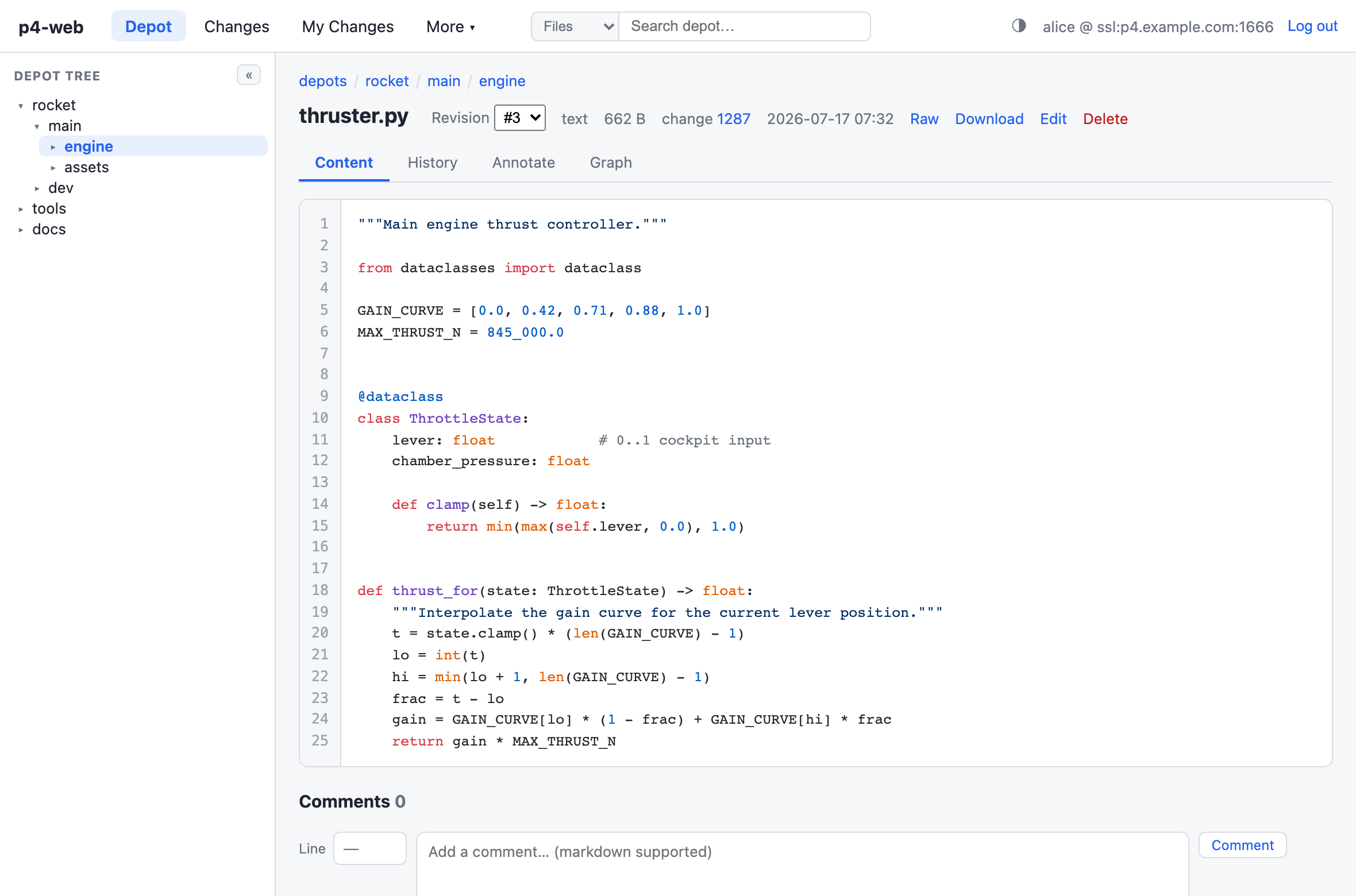
Read files

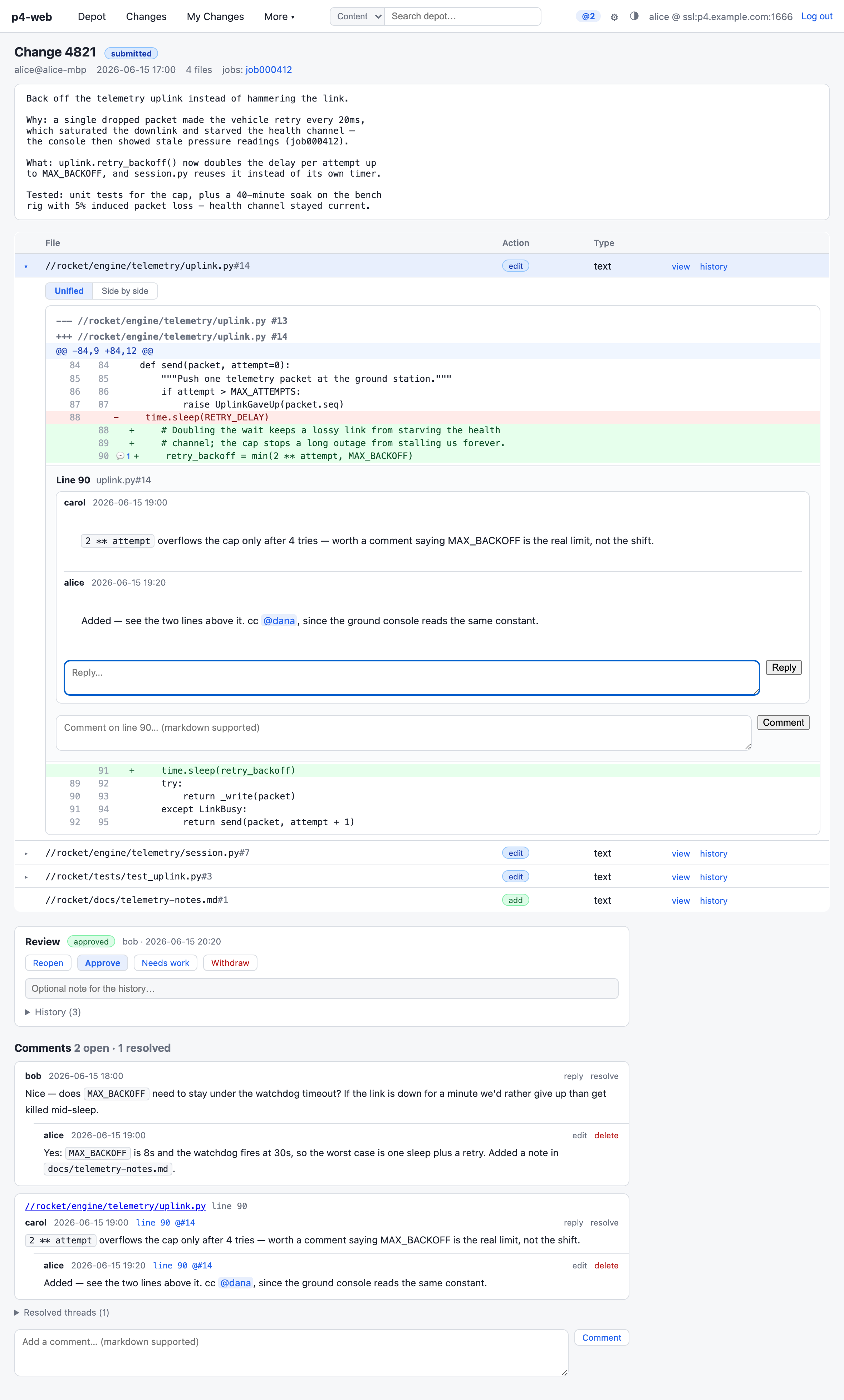
Syntax highlighting works offline (vendored highlight.js). The revision dropdown re-renders the file at any revision; Raw and Download serve the exact bytes. Click a line number to copy a permalink or start an inline comment thread. Markdown files get a Rendered/Source toggle.

File viewer showing syntax-highlighted Python with line numbers, revision dropdown, and comment box
File viewer — Content · History · Annotate · Graph tabs
p4 annotate
step 4

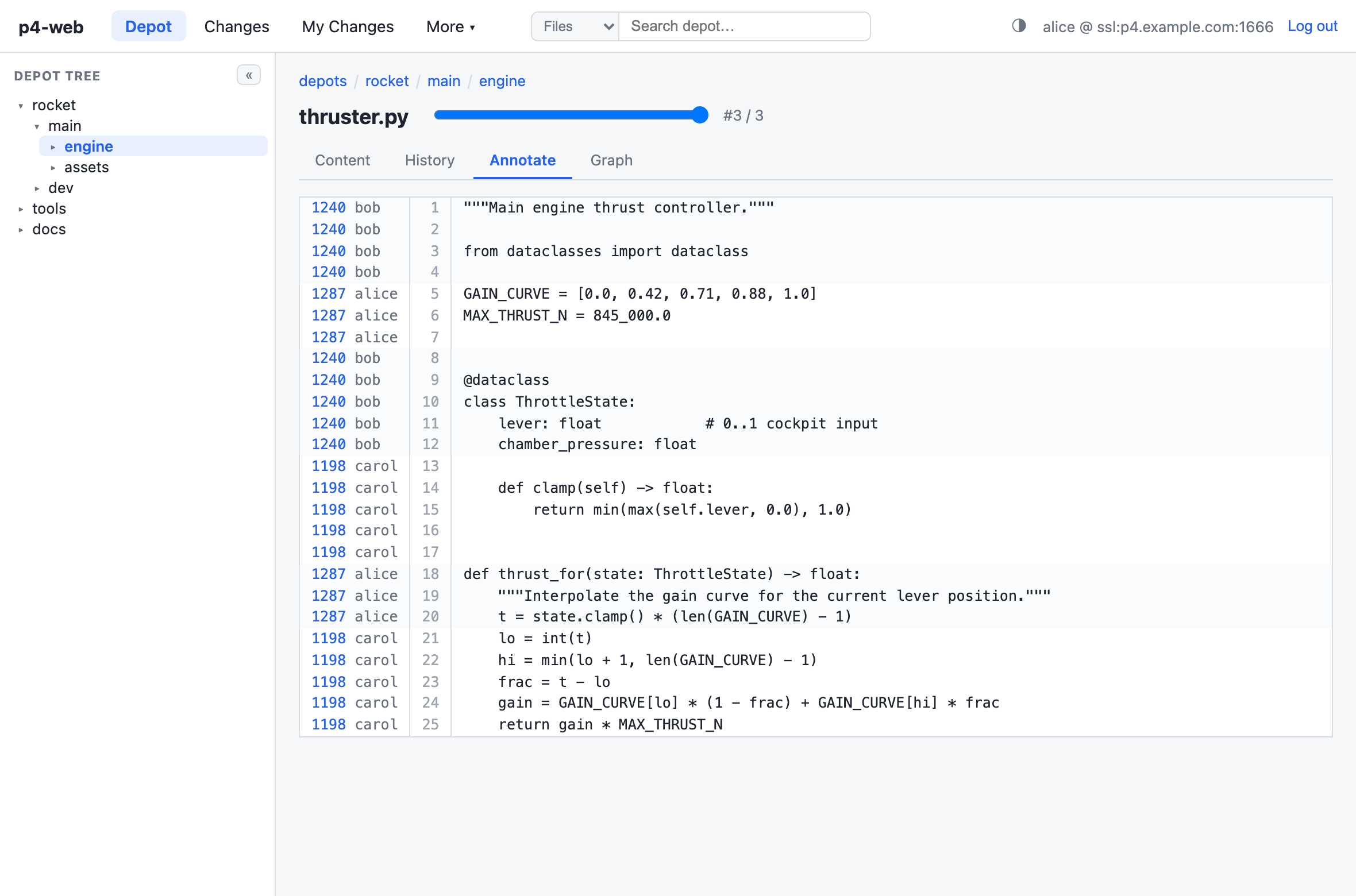
Blame, with a time machine

The Annotate tab shows the changelist and author that last touched every line — click through to the full change. The slider in the header is a time-lapse: drag it to re-blame the file as it stood at any earlier revision.

Annotate view with per-line changelist and author gutter and a revision time-lapse slider
Annotate — per-line change + author, time-lapse slider
p4 diff2
step 5

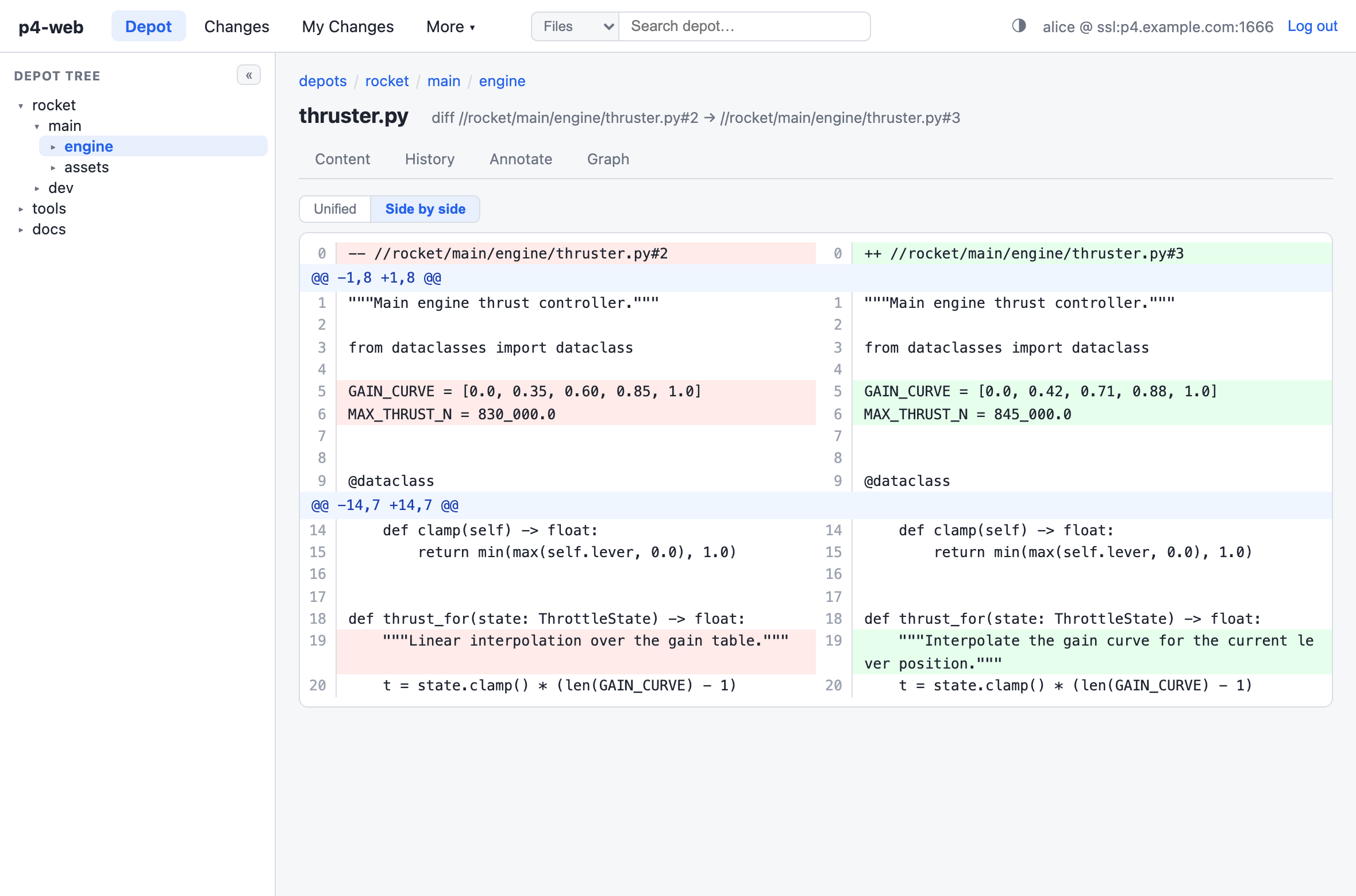
Compare revisions

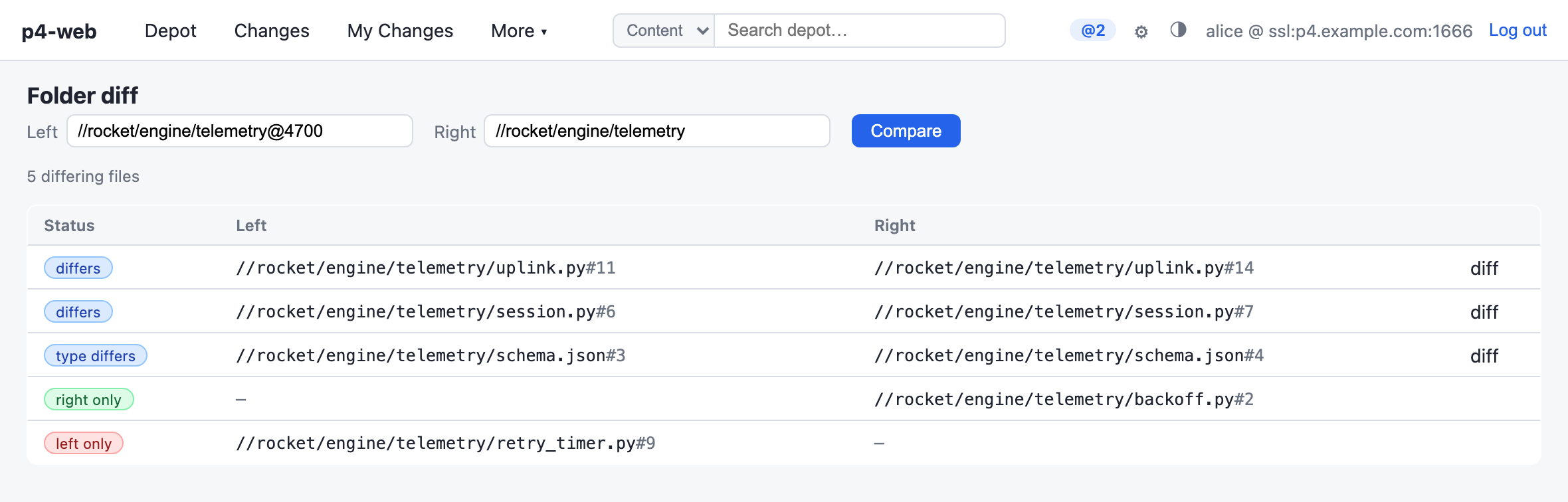
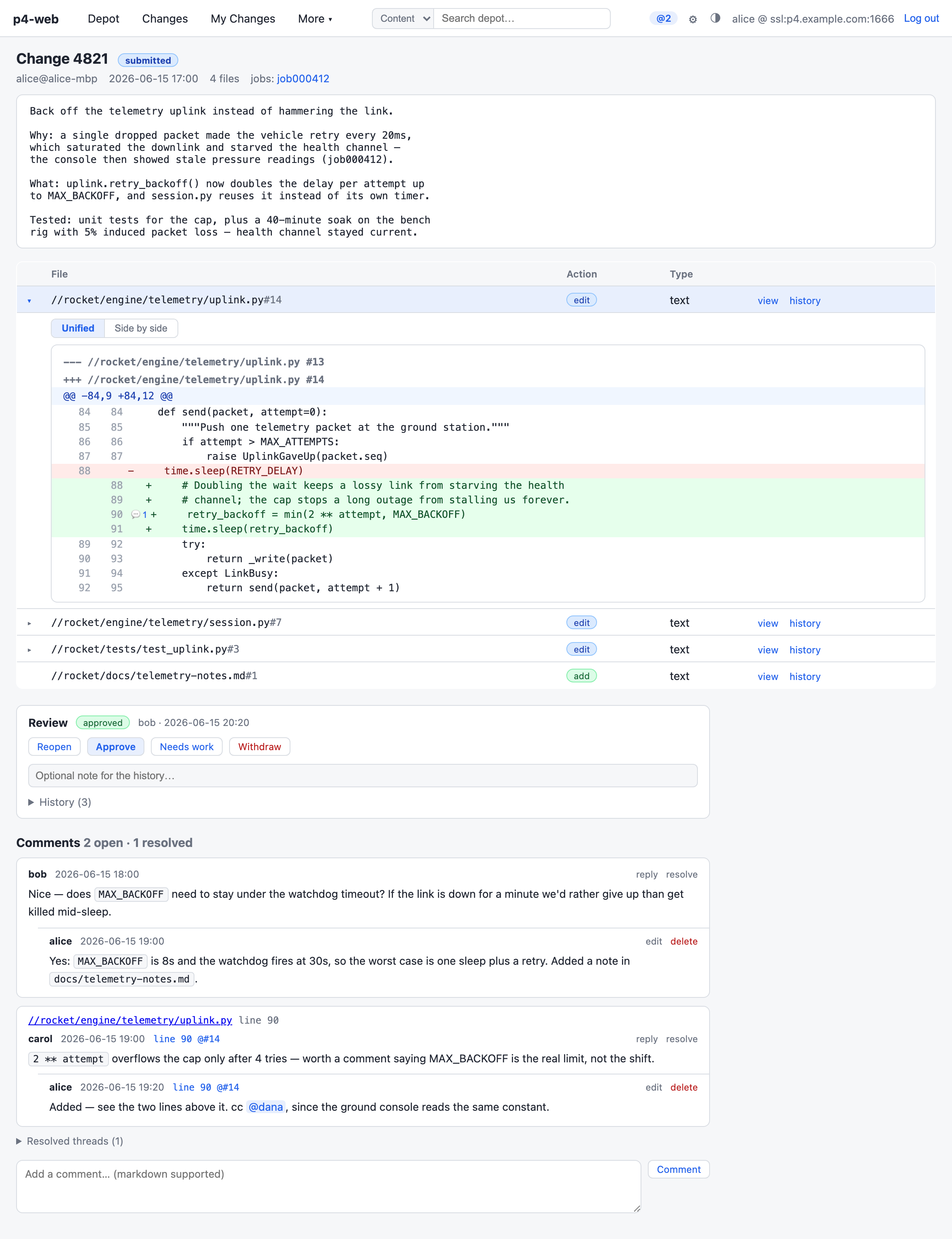
Unified and side-by-side views everywhere a diff appears; the toggle remembers your preference. Pick arbitrary revision pairs from the History tab, or diff whole directory trees with Folder diff (optionally pinned to an @change or @date).

Side-by-side diff of two revisions with added and removed lines highlighted
Diff — side-by-side, arbitrary revision pairs
p4 changes
step 6

Find changes

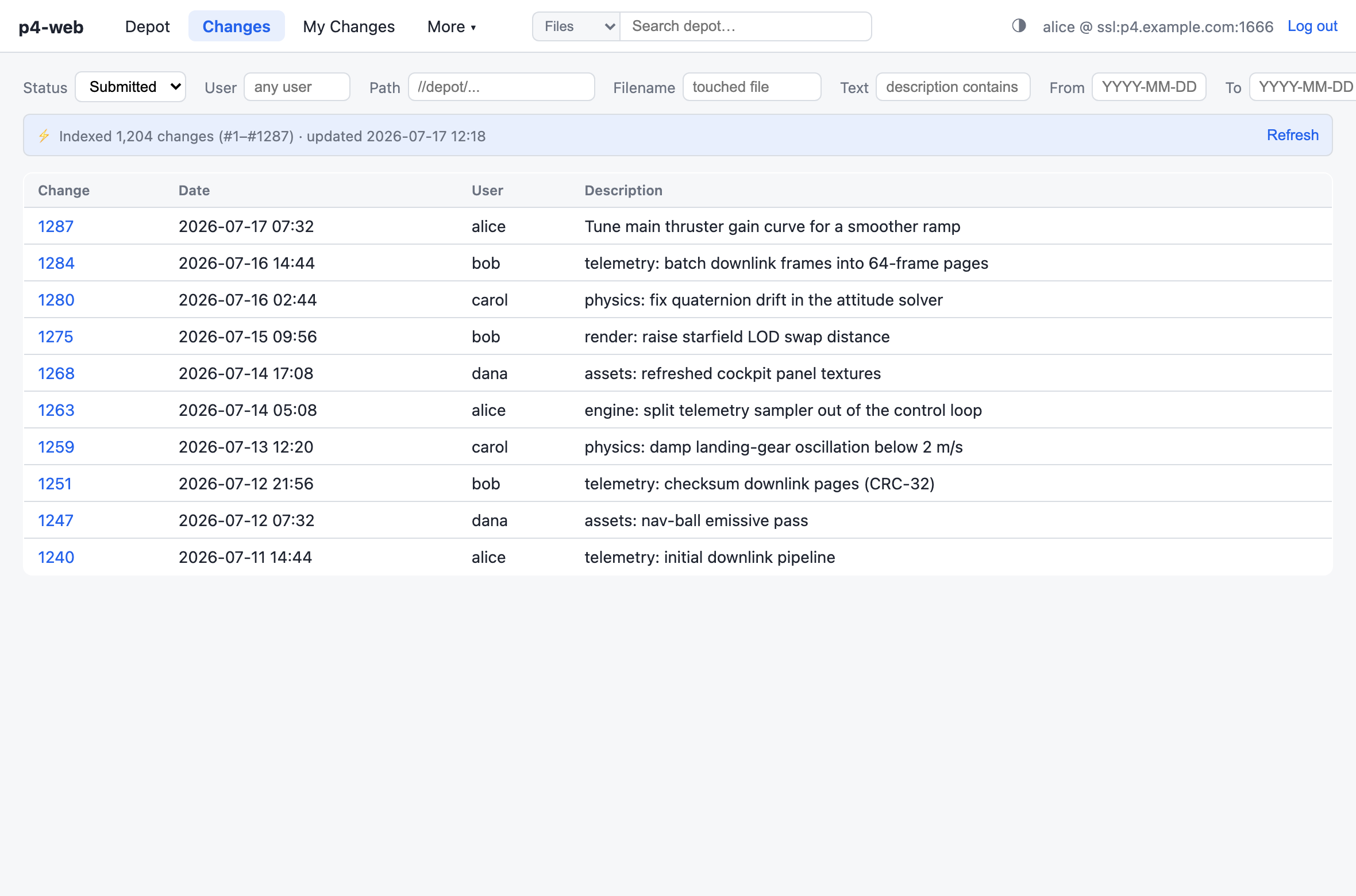
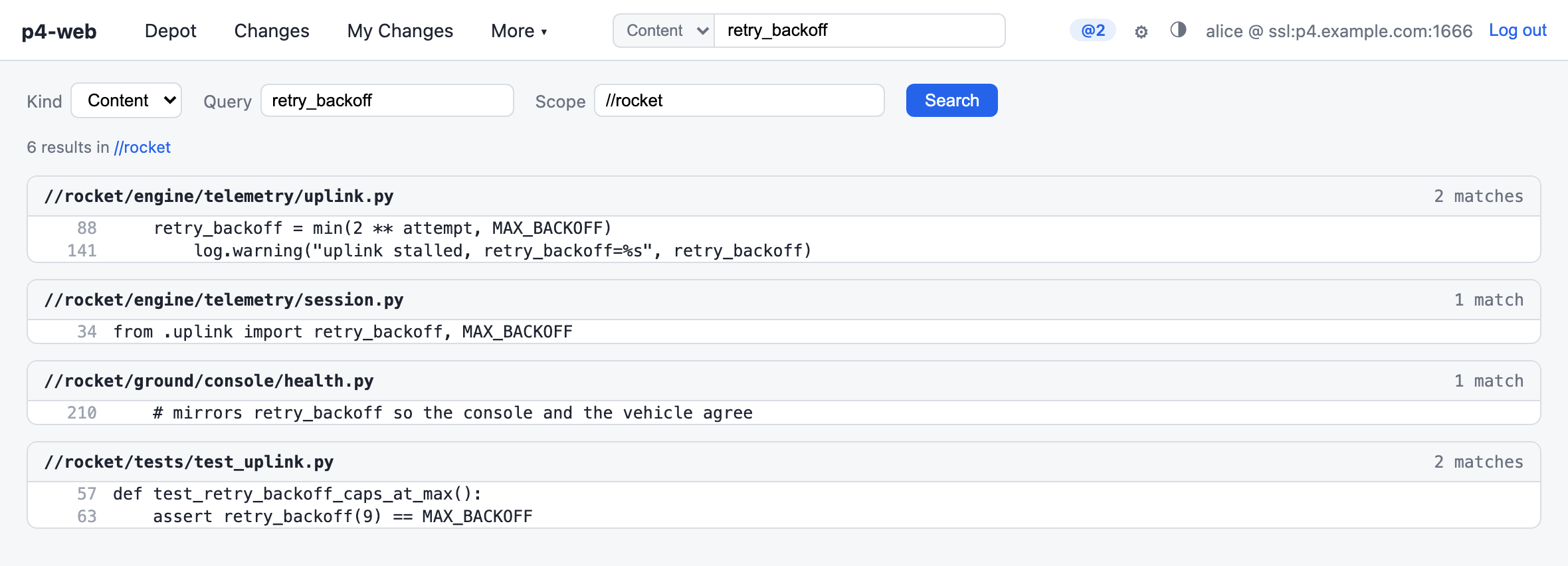
Filter submitted or pending changelists by user, path, filename, description text, or date range. Description and filename search run against a per-user local index (the ⚡ bar) that respects your protections and updates incrementally — searches over thousands of changes come back instantly.

Changes view with filter bar, index status bar, and a list of changelists
Changes — filters + indexed description/filename search
p4 submit
step 7

Edit and submit

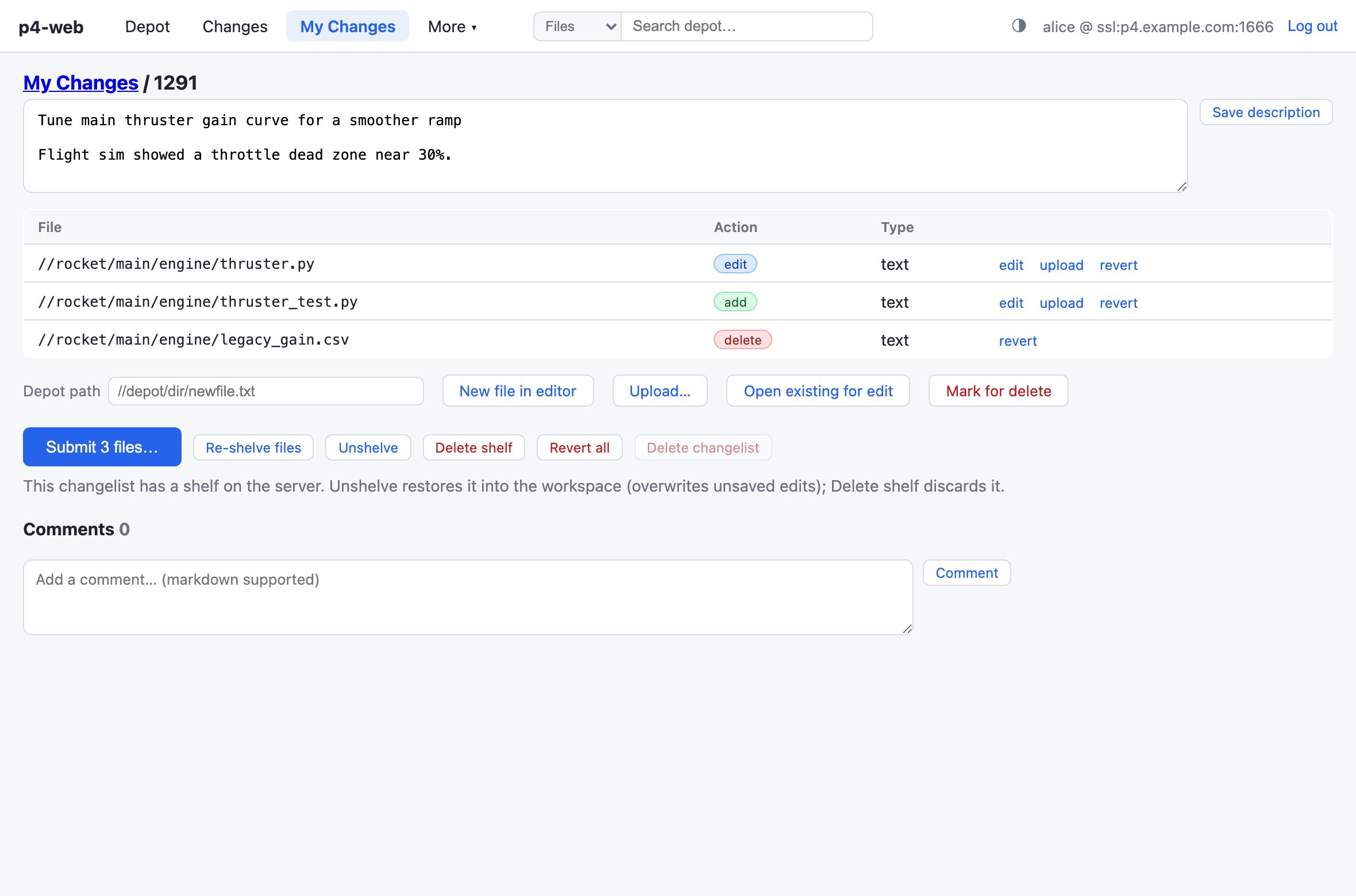
My Changes is your personal pending-changelist page, backed by a server-side workspace created on demand. From any file page, Edit or Delete opens the file into a changelist; here you can:

  • edit text files in the web editor, or upload new/replacement files (binary-safe)
  • shelve and unshelve, or delete the shelf
  • revert single files or the whole changelist
  • submit — behind a confirmation that lists exactly what will land

You can only touch your own p4-web changelists, and every write is recorded in an audit log.

My Changes detail page with description editor, file list with actions, and submit/shelve buttons
My Changes — web editor, upload, shelve, submit